The CPU and Architecture
1. The Evolution of Computing
Before the mid-1940s, computers were fixed-program machines. If you wanted a computer to switch from doing math to processing text, you had to physically rewire it.
2. The Stored Program Concept
In 1945, mathematician John von Neumann proposed a revolutionary idea: the Stored Program Concept.
The Core Idea
Both Data and the Instructions (the program) are stored together in the same Memory Unit (RAM).
This allowed a computer to be reprogrammed simply by loading a different set of instructions into memory, rather than changing the hardware.
3. Components of the Von Neumann Model
The model has a processor and a memory unit, joined by buses. Look carefully at where the boundary falls in the diagram: the Control Unit, the ALU and the registers are all inside the CPU, while memory sits outside it.
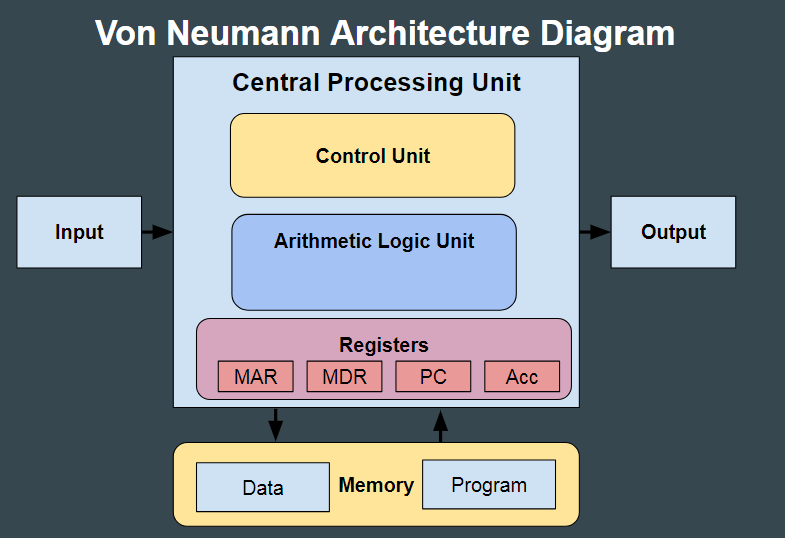
The "Manager" of the CPU. It directs the flow of data between the CPU and other devices. It manages the execution of instructions by sending control signals to the other components.
The "Calculator." It performs all Arithmetic calculations (addition, subtraction, etc.) and Logical operations (comparing values using AND, OR, NOT).
Inside the CPU. A handful of very small, very fast stores, each holding a single value the CPU is working with right now — an address, an instruction, or a result. Covered in detail in the next lesson.
Outside the CPU. This is RAM, also called the immediate access store. It holds the program's instructions and its data together, and the CPU fetches from it across the buses. It is much larger than the registers, and much slower.
4. The Instruction Set
A CPU cannot execute just any instruction. Every processor is built to recognise a fixed, finite list of machine-code operations, and that list is called its instruction set.
Each instruction in the set has two parts:
- Opcode — what to do: add, subtract, load a value, store a value, jump to another instruction.
- Operand — what to do it to: usually a value, or the address in memory where a value can be found.
This is why a program written in a high-level language has to be translated before it will run. The translator's job is to turn each high-level statement into a sequence of instructions drawn from that particular CPU's instruction set.
5. Why the Von Neumann Architecture?
- Flexibility: The same hardware can perform any task as long as the instructions are provided in memory.
- Efficiency: It uses a single set of buses to access memory, simplifying the design of the computer.
- Universal Design: Almost every modern computer, from your smartphone to your laptop, is based on this foundational model.
6. Embedded Systems
Not every computer looks like a computer. An embedded system is a computer system built into a larger device, dedicated to carrying out one specific task — rather than a general-purpose machine that runs whatever software you install on it.
It contains the same ingredients as any other computer: a microprocessor or microcontroller, memory holding a program that does not change, inputs (often from sensors), and outputs (often to actuators or a small display).
| Device | What the embedded system does |
|---|---|
| Washing machine | Runs the selected wash programme: controls water valves, drum motor and heater from timer and temperature sensors. |
| Microwave oven | Times the cooking, controls the magnetron, stops when the door opens. |
| Traffic lights | Sequences the lights, responds to vehicle and pedestrian sensors. |
| Car engine management | Adjusts fuel and ignition continuously from engine sensor readings. |
| Central heating controller | Compares a temperature sensor with the set point and switches the boiler. |
| Advantages | Disadvantages |
|---|---|
| Small and cheap to mass-produce, because the hardware only has to do one job | Difficult or impossible for a user to upgrade or reprogram |
| Low power consumption | Hard to troubleshoot — there is usually no screen or keyboard to diagnose it with |
| Dedicated to one task, so it is fast and reliable at that task | A fault often means replacing the whole unit rather than repairing it |
- In a Von Neumann machine, instructions and data share the same memory and the same buses. This is often a 1-mark question.
- The memory unit is not the registers. Registers are inside the CPU; the memory unit is RAM, outside it.
- An instruction set is the complete list of machine-code operations one CPU can execute — not the program, and not the software.
- Define an embedded system by what it is for — a computer dedicated to one specific function within a larger device — rather than by saying it is "a small computer".